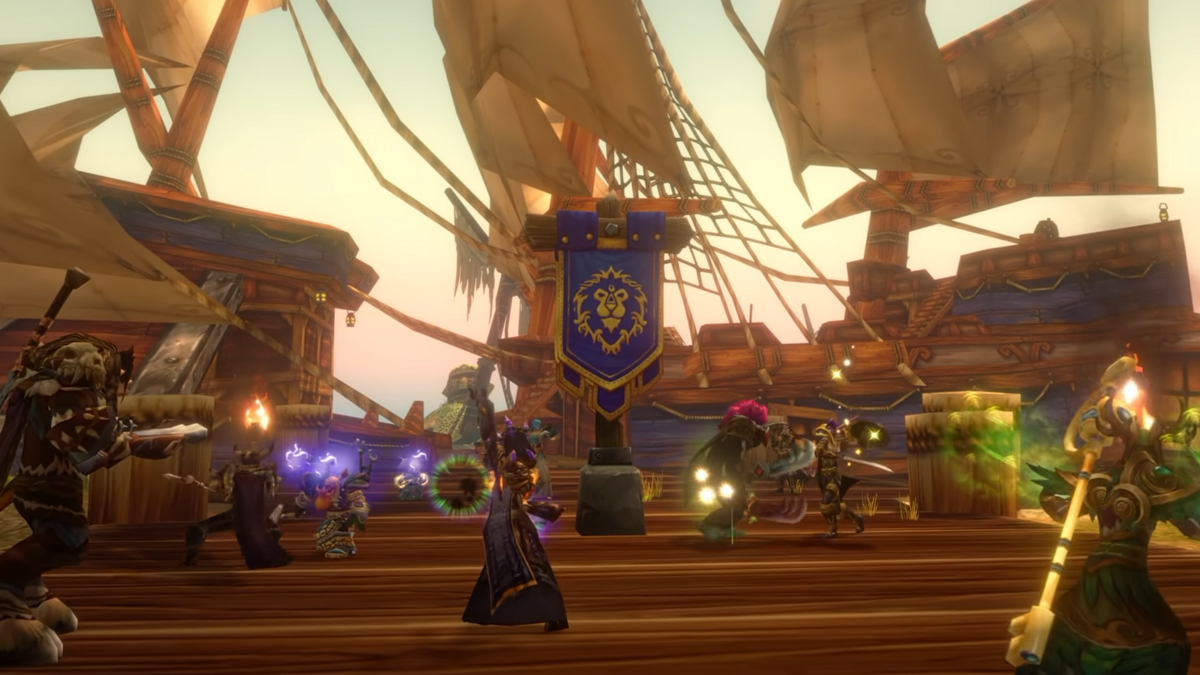


WoW Forever comes with its own unique UI, different from that of other versions of Classic World of Warcraft. It's not a direct 1:1 copy of retail's UI. In this article, we break down how to navigate and customize this UI for every player.
Quick Links:
UI Keybind Shortcuts
In this portion, we'll break down what keybinds open up different sections of your UI. for the most part, this has not changed from previous versions of WoW, but there are some new additions.
OLD
| Keybind | UI Panel |
| C | Character Panel |
| V and Shift + V | Toggle Enemy Nameplates and Toggle Friendly Nameplates |
| H | Honor and PvP Panel |
| I | Looking For Group |
| B | Bags |
| O | Friends List and Raid |
| P | Spellbook |
| L | Quest Log |
| M | Map |
| N | Talents |
| J | Guild and Communities |
| U | Reputations |
NEW
| Keybind | UI Panel |
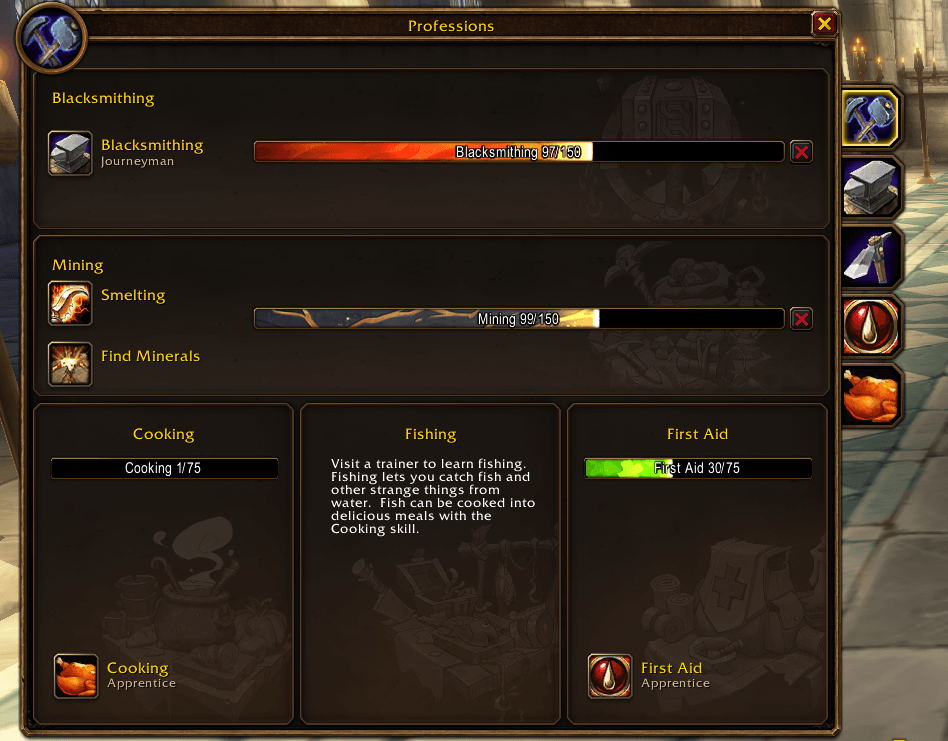
| K | Professions and Tradeskills |
| Y | Legacy Talents |
The new Professions and Tradeskills keybind is where players will not only find their professions, but it is where they'll find the icons that they can put on their action bars. This used to be in their spellbook under general.
Character Panel
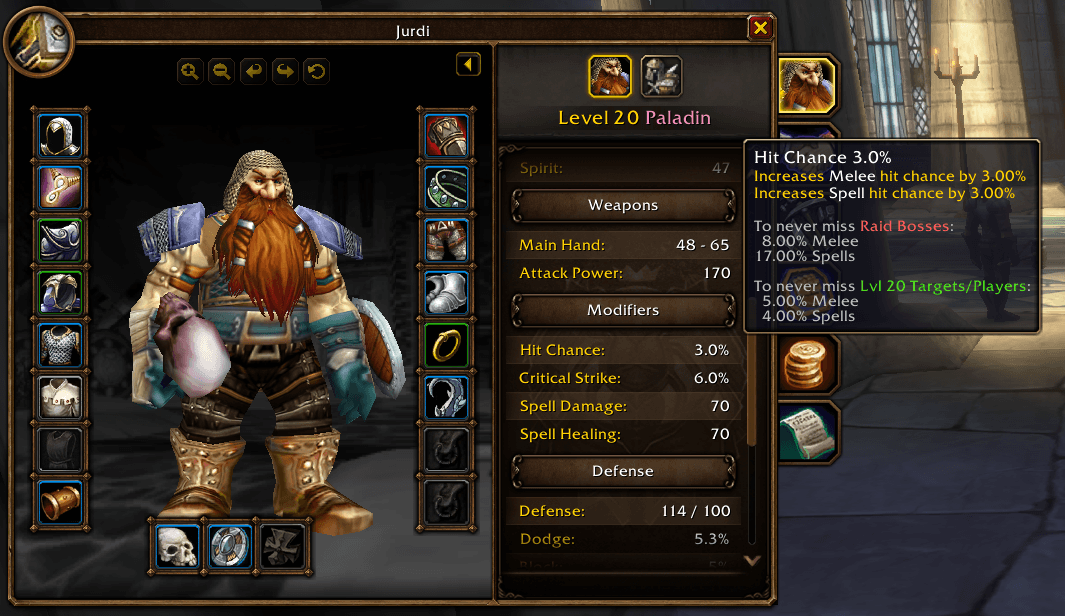
The Character Panel has received a nice overhaul in WoW Forever. The Equipment Manager that first originated in Wrath of the Lich King is now built into this game, making addons like Item Rack not so necessary anymore.
Along with that, your character stat tooltips have had a massive overhaul and now are significantly more descriptive and help players understand how their stats work. Players will find descriptive terms and definitions for stats like Hit Chance, Defense, and Critical Strike, while also understanding how Primary stats like Strength and Intellect buff their character.
Navigating Options
The Options tab has received a major overhaul, and a lot of your old settings have moved to different areas and sections.
Tip: If you ever forget where anything is, you can type what you're looking for in the search bar on the top right!
Controls
Controls now has your Camera setting, and this will be one thing players want to change ASAP. Camera is set to "Always" follow; switch this to "Never", and while you're here, look at your "Max Camera Distance" and find what you prefer by adjusting the slider. Typically, players will like to have the ability to zoom out as much as possible rather than restricting their camera distance. You'll also find the Combine Bags option here, allowing all your bags to merge into one giant bag instead of being separated.
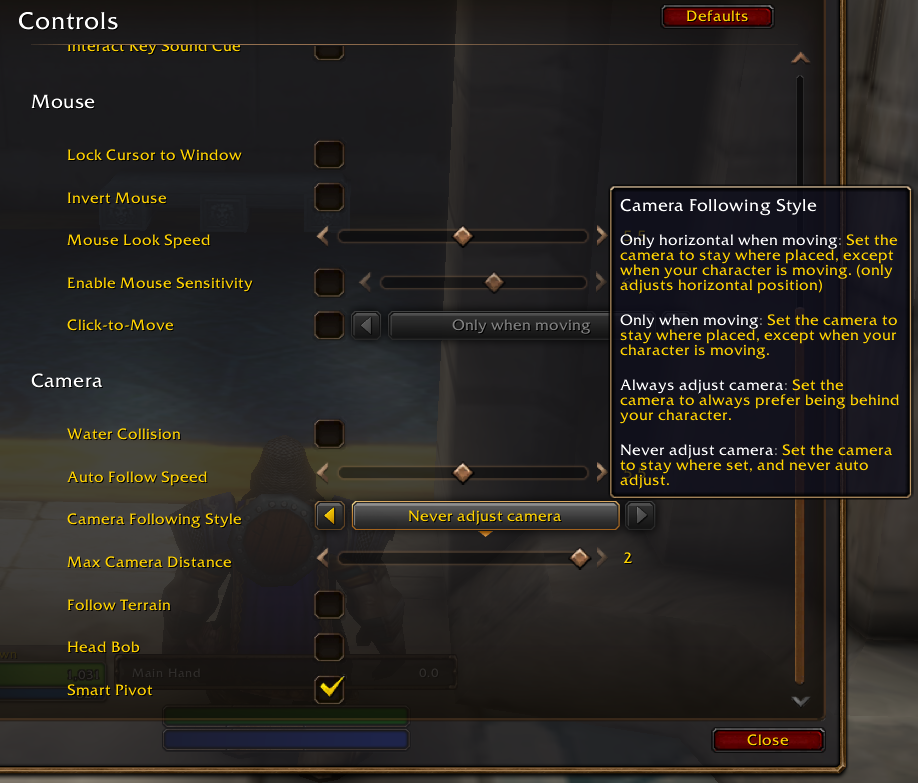
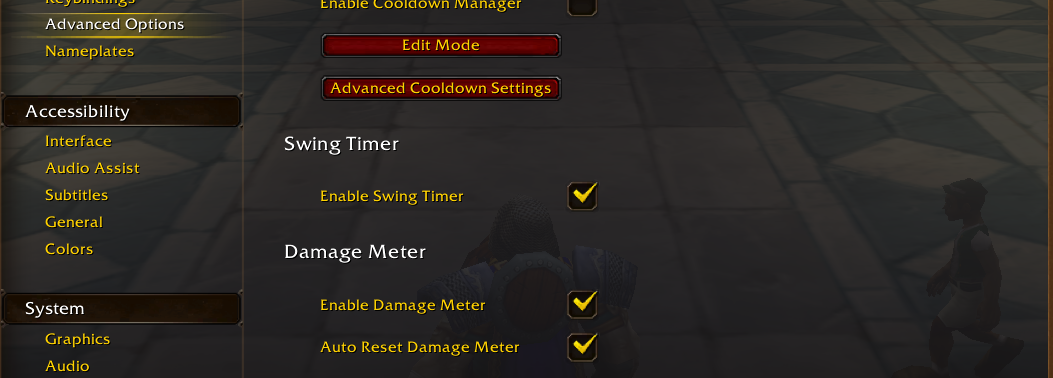
Damage Meter: Controls is also where Blizzard's built-in Damage Meter can be toggled on and off.
Interface
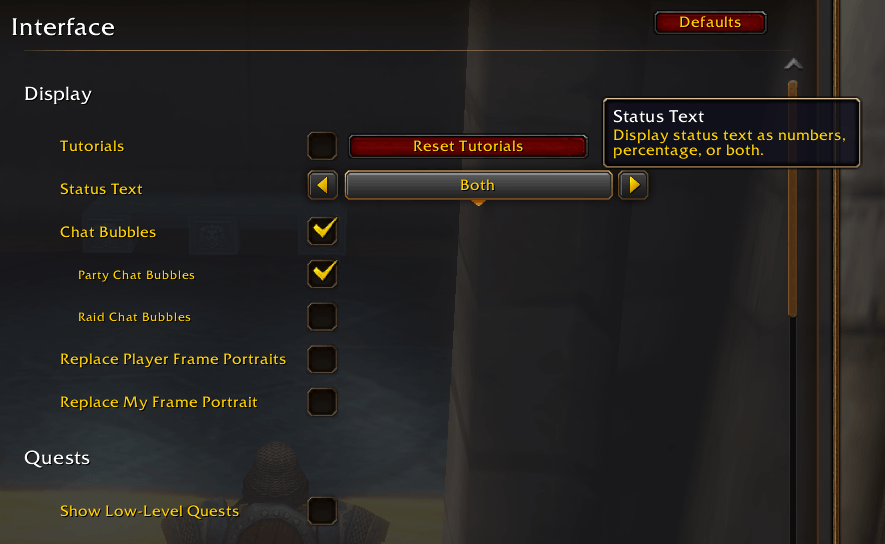
One question players will ask is where to find the option to display their mana and health amounts. This is found in the Interface section. You can set it to amount, percentage, or both, but it is set to none by default. If you want to see lower-level quests, that is also here in the Interface section.
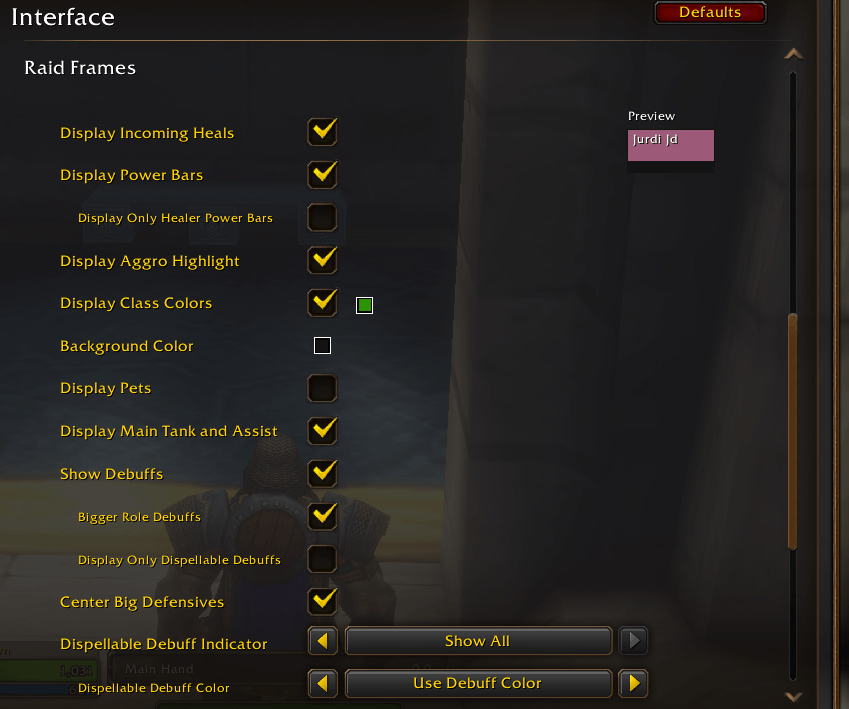
You can also find raid frame adjustment settings to add class color and power bars. We bring this up because all other quest options are located on the Quest Log UI, so players might get confused about where to find this.
Combat
The combat tab has a setting to add a personal resource display for those who don't want to get an addon or aura for it. The combat tab is also where you turn on Target of Target, which is turned off by default. Tanks and healers especially will want this on to see who has threat of a mob. Combat is also where you can toggle your screen flashing when you are at lower health, which is on by default.
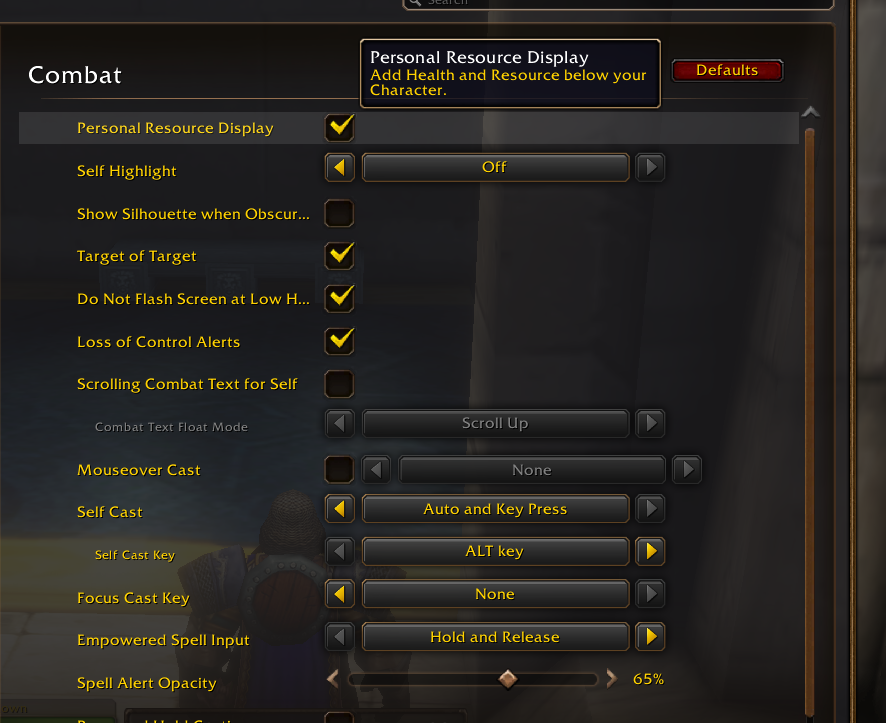
A new feature for Classic players includes the mouseover cast and self-cast options. This allows you to have separate keybinds for certain spells that will either target whoever you have your mouse over or when you want to cast it on yourself. A typical example is any heal spell. Sometimes you may want to heal yourself, and sometimes you may want to heal someone else. 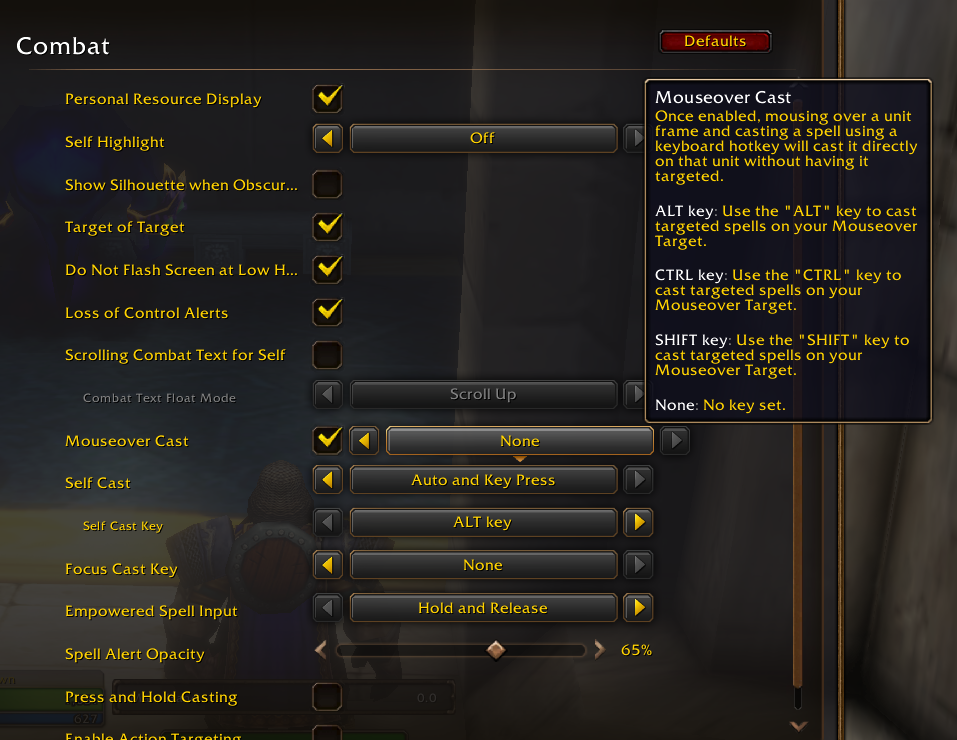
With default settings, to heal someone else, you have to click on their portrait, frame, or character, and then start the heal. With these settings, it allows one keybind to always cast a self-heal, and another that will always cast a heal on whoever your mouse is hovering over. On top of that, you can also even include keybinds for Focus Targets!
Nameplates
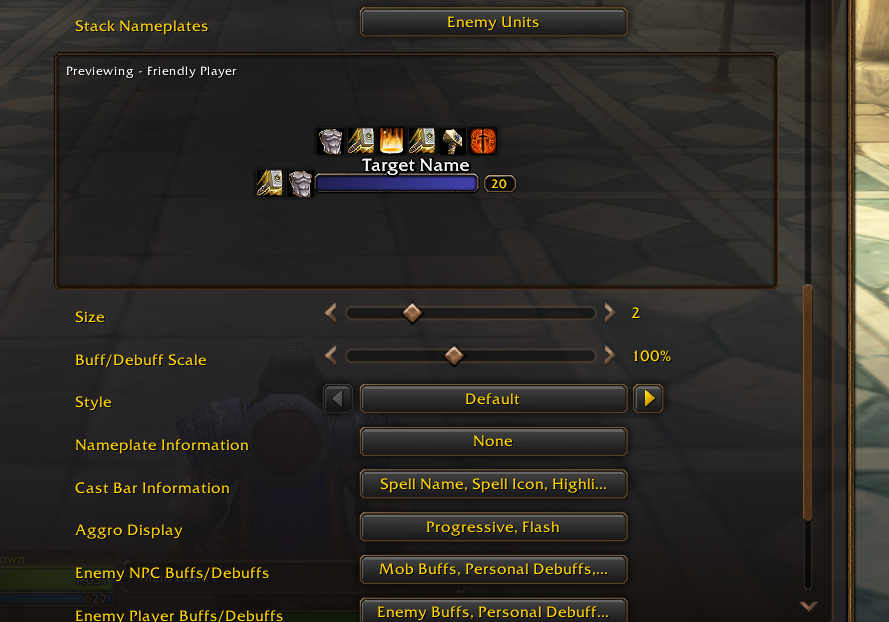
Settings like "My Name", "Always Show Nameplates," and NPC names have moved from Interface to the new Nameplates options. Scrolling down the options, you'll find Blizzard's new customizable options for Nameplates, including Aggro options and styles.
Social
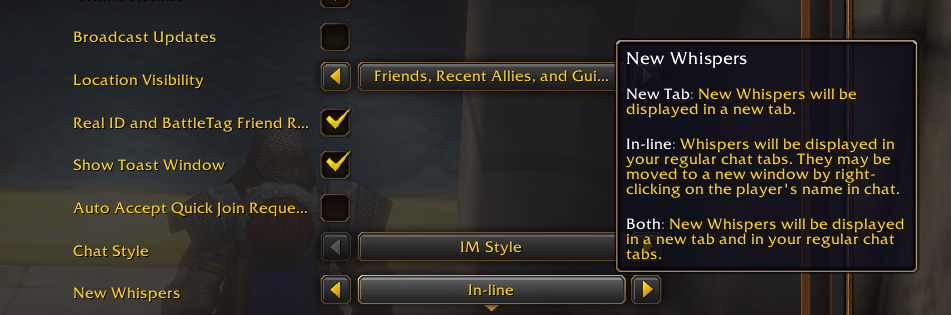
The main settings players will probably want to find here are the Whisper settings and Discord Functionality settings. The Whisper settings in WoW Forever are set to always move whispers to a new tab, which players may not prefer, as this is not a setting that players typically use.
Keybinds and Action Bars
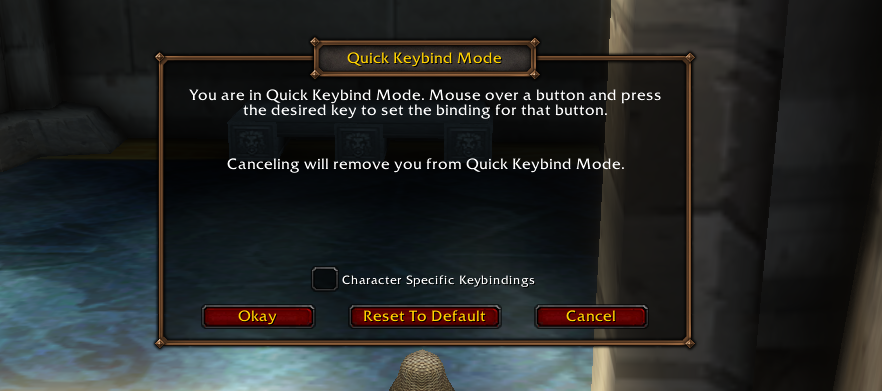
Keybinds is where we go to adjust what we want our keybinds set to. Typically, this is where players go to adjust their action bar keybinds. The new "Quick Keybind" mode allows you to simply hover over a space on your action bar and then select the key you want that space bound to. If you need more Action Bars, then go to the Action Bar tab to add more.
Ping
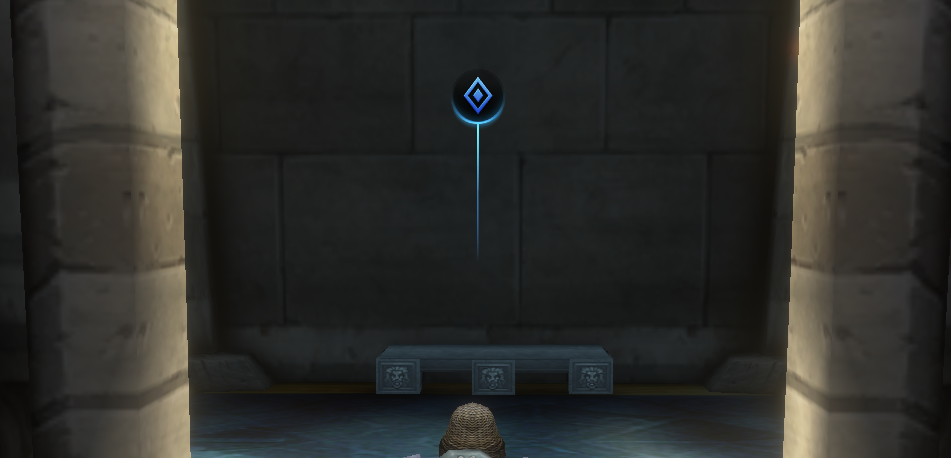
Pinging is something that was recently added in Modern World of Warcraft, and is a very helpful system for showing where you want someone's attention to be. Whether you want people to go a certain direction, attack a certain target, or be aware of a certain dangerous area, this is where you get to customize that. You should first set a Keybind to the default ping command that way, you have quick access to it.
Advanced Options
Advanced Options is where you can find features from Modern World of Warcraft like the Cooldown Manager, the Damage Meter, and even a new feature with a built-in Swing Timer!