Up to 84% Off VPN

After years of waiting, GTA 6 has finally arrived as one of the most anticipated video games of 2026, and everybody is eager to jump in as soon as it launches in their region. Of course, players want to ensure that their progress is kept safe so their valuable time isn’t left to waste, especially as it has been reported that missions are not replayable once complete.
If you’re wondering how to save your game in GTA 6, then everything you’ll need to know about saving has been included in the explainer guide below, including whether there is autosave, how to manually save, and available slots.
Quick Links
- When Does Saving Unlock & How to Save Your Game in GTA 6
- How Do Save Slots Work in GTA 6?
- Is There Autosave in GTA 6?
- All Reasons Why Saving May Not Work in GTA 6 & Possible Fixes
When Does Saving Unlock & How to Save Your Game in GTA 6
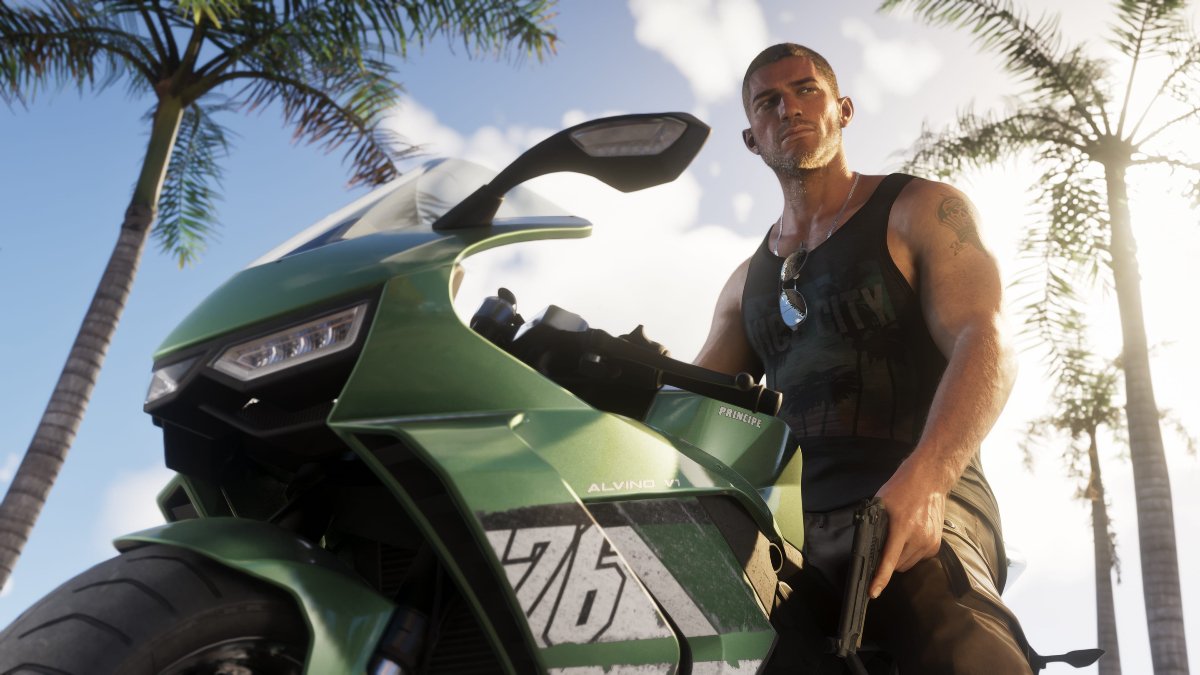
In GTA 6, the ability to save your game is unlocked after you complete the prologue. Following completion of the first job for Brian, you will need to reach Jason’s house in the marina. Saving will automatically become available at this point.
To manually save your game in GTA 6, you will need to simply open up the pause menu, select Game, and then the Save option. You will now be able to choose a fresh slot to save your file, or overwrite an older file to update it.
If you’re looking to try something out for fun and see what happens, or you’re heading into an important mission, then creating a save file beforehand is a good safety precaution. There is no way to go back once you complete missions, so your older save files will be the only way to return to a previous point of game progress.
However, if you notice that the option to save is grayed out in your menu, preventing you from saving, there is a simple solution. You are unable to save while in a mission, so you just need to either fully complete your currently active mission or choose to cancel it from the pause menu. So long as you are not actively undergoing any mission, then you will freely be able to save your game from anywhere in the city.
How Do Save Slots Work in GTA 6?
There is a total of fifteen available save slots in GTA 6, so you’ll need to use them wisely over the various chapters of the story. Saving at the beginning and end of any chapter is a good idea in case you need to go back for any reason, as well as saving before any major decisions or risky activities that could have dire consequences for the hours of work you’ve put in up until that point.
You can also overwrite old save slots as you no longer need them, but players should consider if they’d want to return to these earlier stages of the game for any reson before saving overtop of all of their slots, as they are the only way to go back without starting a whole new game.
Is There Autosave in GTA 6?
Yes, there is also an autosave feature in GTA 6. However, you don’t need to worry about this interfering with your manual save progress, as there is a separate dedicated slot for autosaves. Players can expect autosaves to occur at the end of every mission, chapter, and major event.
All Reasons Why Saving May Not Work in GTA 6 & Possible Fixes
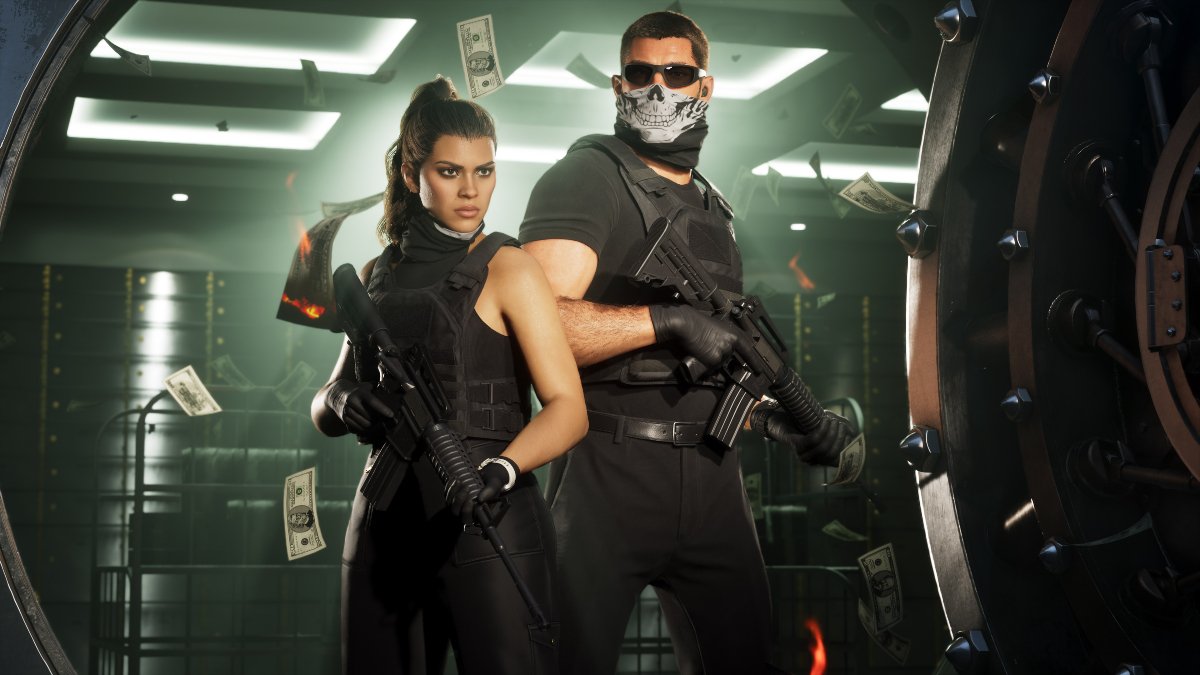
Some gamers have found themselves confused about why their save access does not seem to work or appears grayed out or ‘broken’. Other than simply not having made progress past the prologue to actually unlock saving, there are a few additional reasons why this may happen.
Here are all known reasons why saving may not work in GTA 6 and what you can do to fix them:
- Use of cheats: In GTA 6, if you use one of the in-game cheats during your session, saving will become disabled alongside achievements/trophies.
- How to fix: Exit your game and relaunch. Avoid using cheats prior to the point you’d like to save at.
- Corrupted Files: As is with any game, sometimes corruption can happen. Ensure you have cloud saves on as a preventative measure.
- How to fix: Load an earlier save via the cloud.
- Mission is Active: Once again, you need to not be actively in a mission in order to save.
- How to fix: Either complete the mission or cancel from your pause menu; saving will now become available again.