

 Up to 84% Off VPN
Interface
A good UI helps you make fast, correct decisions without forcing you to think about the UI itself. For Preservation, that means showing the information that actually affects your next cast, keeping it close to your raid frames, and removing as much clutter as possible.
Core Principles
When building my UI, I follow three core principles.
Frames first - As a healer, most of your gameplay starts at the raid frames. The information that matters most within a fraction of a second should sit close to them. High-priority cooldowns, procs, and key buffs belong nearby, while lower-urgency information can sit further away.
Signal only - If a piece of information will not change your next decision, it usually does not need to be visible. Too much information quickly turns into noise, especially in hectic pulls.
Zoned layout - Group abilities by purpose. Keep single-target heals and externals together, core healing tools and throughput cooldowns in another area, and DPS, defensives, and raid cooldowns in their own spaces. One quick glance at a zone should tell you what kind of answer you have available.
Default UI
With Midnight, Blizzard has made a big push to improve the base UI and reduce reliance on addons. We now have:
- A built-in damage meter
- A much more flexible cooldown manager for the center HUD
- Improved nameplates
- A native boss ability timeline
Party and raid frames have also seen major improvements in both clarity and customization. Overall, Blizzard has done a genuinely good job, and there’s nothing wrong with using the default tools exclusively.
What to Configure
To get the most out of the default UI, you should still configure it so it shows the right information at the right time.
- In your damage meter, open a tab with Deaths so you can quickly see what someone died to and learn from it for the next time you get there.
- Sound cues are also very useful. You can assign a short sound to important cooldowns like your dispel so you do not have to keep an eye on its cooldown.
- Set up your Cooldown Manager to show important buffs, like Twin Echoes and Essence Burst.
- Customize your boss timeline so it is easy for you to read. You will look at it a lot to plan your healing around incoming mechanics, and a clear timeline makes that planning much easier.
Addons can still add a lot of value if you want more control over tracking, layout, or readability. If you want to push your UI further, the addons below are the ones I can recommend.
Recommended Addons
UI Suite
If you prefer an all-in-one approach, EllesmereUI is worth a look. It is a modular UI suite covering things like unit frames, nameplates, cooldown management, resource bars, aura reminders and various other UI elements. A big advantage is that it gives you a clean, cohesive setup without needing to piece together as many separate addons, while still offering strong customization through its built-in editor.
Raid Frames
I prefer using addons for raid frames to have more control over what information is shown and how it’s displayed. Grid2 is my main recommendation since it offers very deep customization while still being reasonably easy to get into. Cell is another popular option that’s a bit quicker to set up and get into and also offers plenty of customization.
Nameplates
There are several good nameplate addons, but Plater is by far the most widely used. It offers extremely deep customization and also lets you import profiles from other players, making it easy to get a good setup without building everything from scratch. A newer option worth mentioning is Platynator, which is also very solid and shows a lot of promise.
Cooldown Manager
Cooldown manager addons can be helpful once you run into the limits of Blizzard’s default system. While the built-in cooldown manager is a good baseline, it’s restricted in layout and flexibility, which makes it hard to tailor information to your personal playstyle. Addons like BetterCooldownManager or Arc UI give you much more control by allowing additional bars, custom groupings, clearer visuals, and alternative ways of displaying cooldowns, resources, and items.
Boss Timeline
Blizzard now provides a built-in boss timeline that shows upcoming abilities, which is extremely helpful for planning your healing. Knowing what mechanic is coming next and when it happens makes it much easier to prepare cooldowns and positioning. The two addons BigWigs and DBM build on this by adding more customization options.
Method Raid Tools
This addon allows you to see custom notes and other helpful stuff. If your guild sets up healer notes for CD’s this is a way to import them and make them show on your UI.
M+ Timer
I recommend WarpDeplete. It’s a customizable Mythic+ timer that lets you tailor the look of your dungeon timer while still showing all the essential info like time, enemy forces, and deaths, and it fits especially well into clean, modern, minimalist WoW UIs.
Camera Control
I recommend DynamicCam because it lets me slightly shift the camera upward, so I see more of what’s happening in front of my character. That gives me more usable screen space at the top, a clearer overview of the fight, and makes stacked nameplates much easier to read, especially in busy Mythic+ pulls or raids.
Preservation Evoker UI
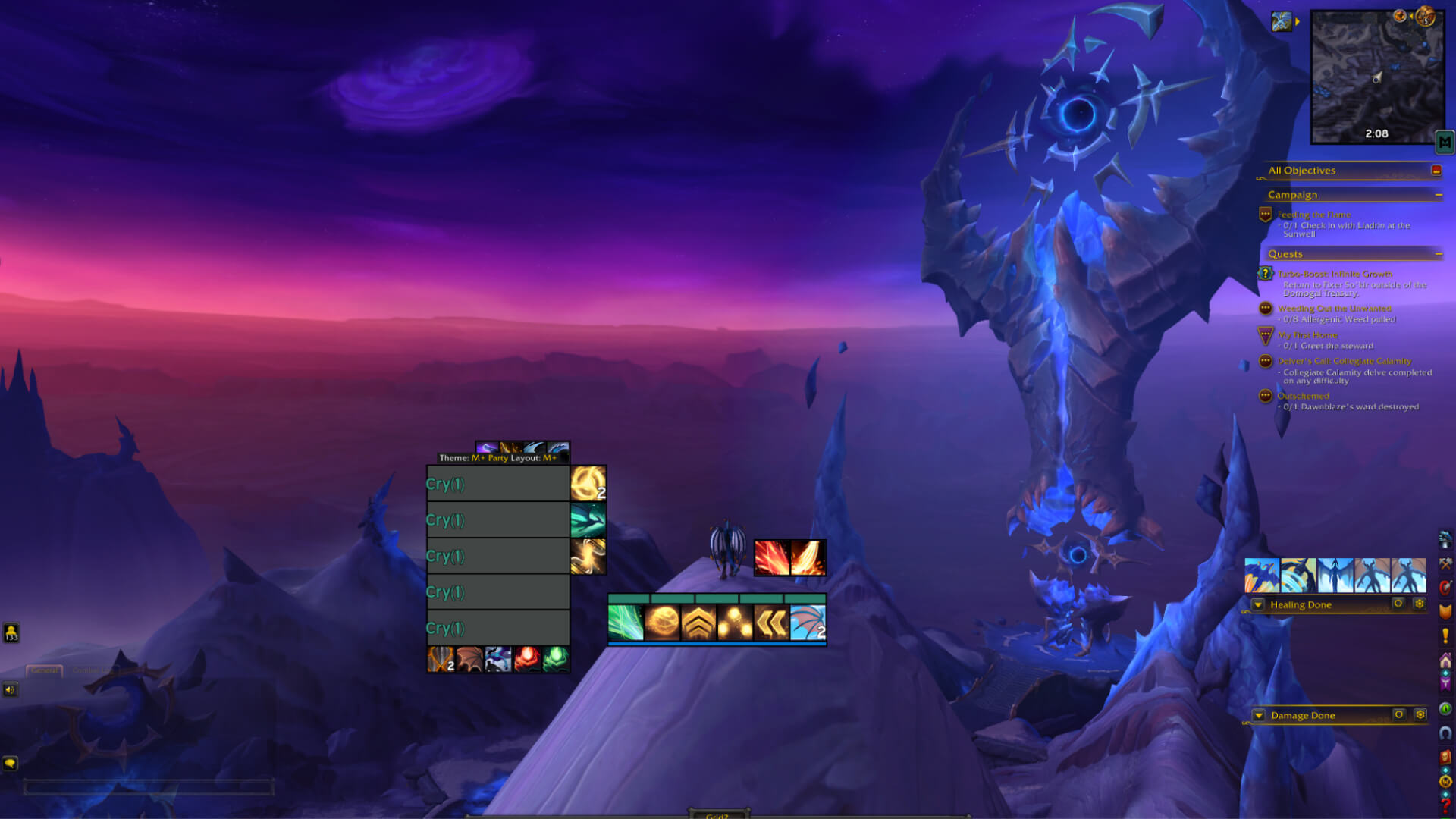
An example UI can look something like this, with a clean layout and focus on readability during combat. All the important addon profiles I use, including Grid2 and my cooldown manager setup, are available on my Twitch at https://www.twitch.tv/cryve.
Macros
Macros are one of the most underrated tools in WoW. They help you be faster and more consistent by removing unnecessary steps. Less targeting, fewer clicks, and quicker reactions add up fast, especially in high-pressure situations.
Mouseover Macros
Mouseover macros let you cast directly on the unit your cursor is hovering over, which makes healing feel much smoother and more responsive.
Blizzard does offer mouseover casting in the base settings now, but macros still give you more flexibility.
Template (replace SPELL/ABILITY):
#showtooltip SPELL/ABILITY
/use [@mouseover,help,nodead][help,nodead][@player] SPELL/ABILITY
Example:
#showtooltip Emerald Blossom(Green)
/use [@mouseover,help,nodead][help,nodead][@player] Emerald Blossom(Green)
This prioritizes mouseover, then your target, and finally yourself if neither is valid.
Cursor Based Ground Targeting
Ground-targeted spells normally require two inputs: placing the targeting circle and then confirming the cast. In moments where reaction time matters, that extra step can be costly.
Cursor macros skip the targeting circle and instantly cast the spell at your cursor position. This works best for spells you’re already comfortable placing.
Template (replace SPELL/ABILITY):
#showtooltip SPELL/ABILITY
/cast [@cursor] SPELL/ABILITY
Combining Spells or Items
Macros are also great for combining abilities you always use together. For example, if you have a trinket that you consistently use alongside a major cooldown, you can bind both to a single button.
Template (replace SPELL/ABILITY):
#showtooltip SPELL/ABILITY
/cast SPELL/ABILITY
/use ITEM/SPELL/ABILITY